Compile Excel Workbook to an EXE File
Before compilation your Excel workbook into EXE file you need to verify that environment of your computer meets the requirements of the DoneEx XCell Compiler.
To compile a spreadsheet to an EXE you need to have the Microsoft Windows 7 or higher and Microsoft Office 2007 SP3 or higher with the latest service pack and updates installed on your computer. Our product supports all 32-bit and 64-bit versions of Excel from 2007 and higher, including Excel from Office 365. Please make sure that Microsoft Office Visual Basic for Application (VBA) component is selected in your MS Office installation.
We assume that you have already downloaded and installed the DoneEx XCell Compiler on your computer.
Excel compiler works with the copy of the workbook, so your original workbook will not be altered.
Before workbook compilation, you need to adjust your Excel settings to allow Excel Compiler to secure your workbook.
You need to enable “Trust access to the VBA project object model” MS Excel option via the following path:
Excel Options >> Trust center >> click button “Trust Center Settings…” >> Macro Settings >> enable check box “Trust access to the VBA project object model”
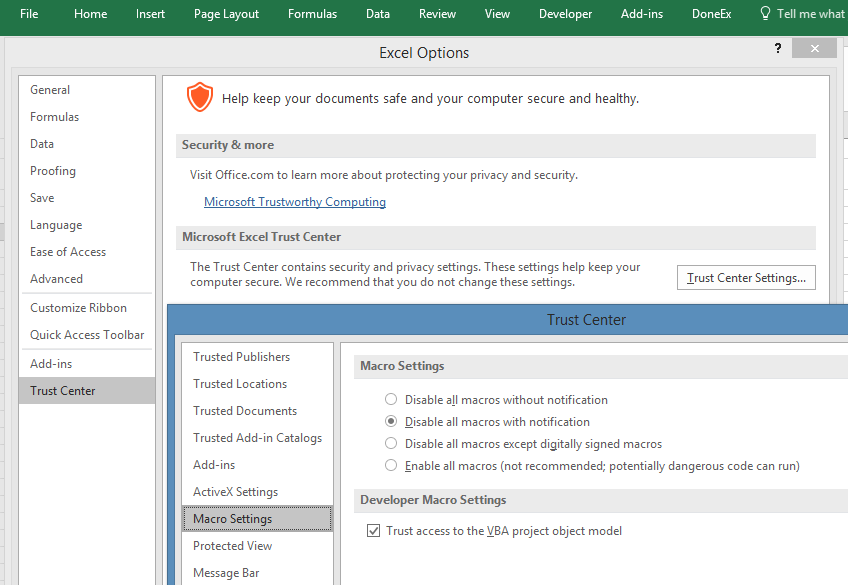
You need to perform this step only once, before the first compilation.
How to Compile a Excel Workbook to an EXE File
- Copy a workbook you would like to compile into the “My Documents” folder or its sub-folder.
- Open the workbook by double clicking on it with the left mouse button in the Windows Explorer.
- The workbook will be opened in your Excel version. In our explanation we will be using our Sample.xls file.
- Select DoneEx >> XCell Compiler >> Compile, from the Excel main menu bar.
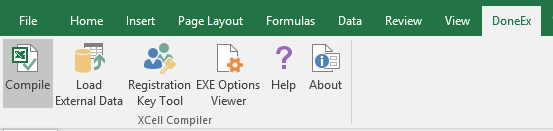
- The following dialog form will appear.
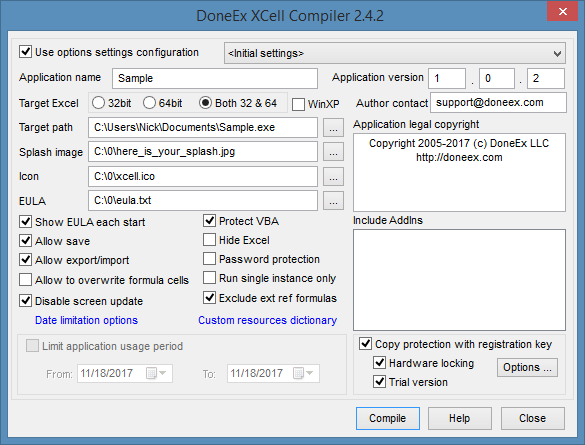
- The ‘Application Name’ field is filled by the workbook name by default.
- Put the version number 1 0 2 as shown in the above image
- Enter the copyright text in the copyright box.
- The target path shows the location and file name of your compiled application. By default, the location of the compiled EXE file will be in the same folder as where your original workbook is located. By default, the name of your compiled EXE will be the same as your original workbook name but with a ‘.EXE’ file extension.
- Click the compile button in the XCell Compiler screen. Once the compilation is completed, the following message will be displayed.
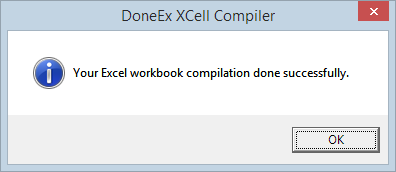
- Click OK on the compilation message screen.
- Click the close button on the XCell Compiler screen.
- Close Excel.
- Once the Excel worksheet is compiled, a file with the EXE format will be saved at the specified target path.
Browse “My Documents” to use the compiled file, and then just double click the compiled file icon (sample.exe file) with the left mouse button. - The file will be opened in a Microsoft Excel environment .
- The file is secured now; you can send the compiled file to your client with peace of mind.
