How to Create a Trial/Demo Protected Workbook
You may create a Trial version of your compiled Excel workbook with the trial period limited by amount of days you set before compilation.
In this case, the start date will be assigned as the date of the first start of the trial period of the compiled EXE on the client’s computer.
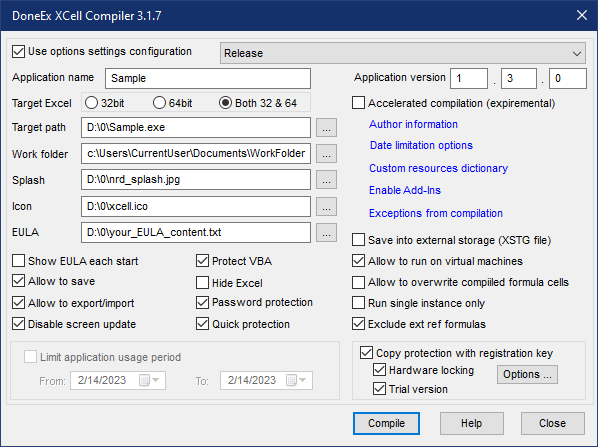
To create the Trial version of your compiled EXE you need to follow these steps:
- Select the “Copy protection with registration key” option.
- Select the “Hardware locking” option, in case you would like to have your EXE to be locked to the client’s computer id number after the trial period expires.
- Enable the “Trial version” option.
When you select the “Trial version” option – the following form will be shown.

On this form you may select additional options for trial version
- Set the number of days for trial period.
- Select the value for the delay time before the ‘Close’ button appears on the trial warning window.
- By selecting the warning recall interval time, you will set the interval time between the latest appearance of the trial warning window and when it will appear again. In case if you select 0 (zero) minutes then the trial warning window will only appear at start time.
- If you would like to customize the trial annoying warning content then you may set your own message by selecting the .TXT or .RTF file with content of your warning on the disk into the ‘Custom warning content’ field.
When trial version option settings are done then press “OK” button to apply the changes.
- Press ‘Compile’ button and you will get the compiled trial EXE
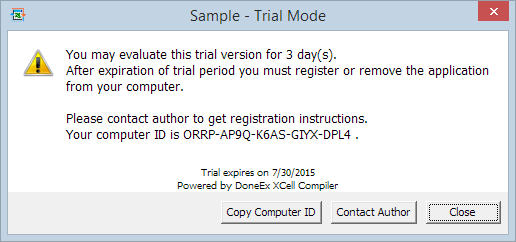
- This EXE will work with the following trial version warning window (which will be shown every several minutes or at every start of the application, based on what you have selected in field ‘Warning recall interval’ of the ‘Trial Version Options’ form), without the request of the user computer id until the trial period has expired. During the trial period the computer id can be found in Application Name About box.
When the trial period expires, the following notice will appear:
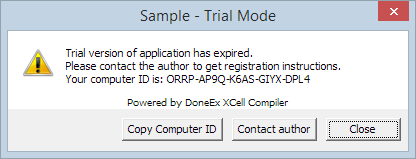
The copyright vendor info, which is shown in these windows, is taken from the “Application legal copyright” edit box.
“Save”, “Save As” and “Export” features are not available during trial period.
When your client makes purchase, they will send you their computer id (if you selected “Hardware locking” ON during compilation), you will create the registration key and the same EXE file will work in registered mode with that registration key. You do not need to generate another EXE.
While testing the Trial EXE, you may start it on your machine.
However, when you are ready to distribute the Trial EXE, you should not start it after compilation, because then the EXE will fix the date of its first start as a start date of the trial period.
How to assign your own Trial/Demo workbook limitations.
The product provides you with opportunities to adjust your own limitations for your Trial/Demo version.
These limitations may even be applied on the level of cell values. In this case you may decide between what would you like to show in trial version and what you like to show in registered one.
For that purpose you need to use the INFO Excel function.
The DoneEx XCell Compiler adds new parameter values for that function which return correct values only in the compiled EXE.
INFO(“isexe”) – returns #VALUE! in original xls but TRUE in compiled EXE.
All of the following parameters of the INFO function are available for the BUSINESS PRO license only and return no error values in case if the EXE was compiled with ‘Hardware locking’ option on.
INFO(“rname”) – returns #VALUE! in the original xls, #N/A in the compiled EXE which works in trial mode and returns the registered name if the EXE is registered with a registration key file.
INFO(“rmail”) – returns #VALUE! in the original xls, #N/A in the compiled EXE which works in trial mode and returns the registered e-mail if the EXE is registered with a registration key file.
INFO(“compid”) – returns #VALUE! in the original xls, the computer id number of the current computer where the compiled EXE is started.
This new INFO function’s parameters let you distinguish between compiled/uncompiled and registered/trial version of your mode.
for example:
=IF(ISERROR(INFO(“rname”)),IF(ISNA(INFO(“rname”)),”Trial mode”,”Uncompiled model info”), IF( INFO(“rname”) = “admin”, “Admin Info”, “Customer info”))
A cell, where this equation will be entered, returns “Uncompiled model” for the original xls, “Trial mode” for the compiled EXE in trial mode, “Admin info” for a registered user with name “admin” and “Customer Info” for all other registered users.