Excel Workbook to EXE File Conversion
Before you convert your Excel workbook into EXE file you need to verify that environment of your computer meets the requirements of the DoneEx XCell Compiler.
To convert an Excel spreadsheet to an EXE you need to have the Microsoft Windows 10 or higher and Microsoft Office 2010 SP2 or higher with the latest service pack and updates installed on your computer. Our product supports all 32-bit and 64-bit versions of Excel from 2010 and higher, including Excel from Office 365. Please make sure that you have selected the Microsoft Office Visual Basic for Application (VBA) component in your MS Office installation.
We assume that you have already downloaded and installed the DoneEx XCell Compiler on your computer.
XCell Compiler works with the copy of the workbook. This ensures that the Excel to Exe conversion process will not alter your original workbook.
Before workbook compilation, you need to adjust your Excel settings to allow XCell Compiler to secure your workbook.
You need to enable “Trust access to the VBA project object model” MS Excel option via the following path:
Excel Options >> Trust center >> click button “Trust Center Settings…” >> Macro Settings >> enable check box “Trust access to the VBA project object model”
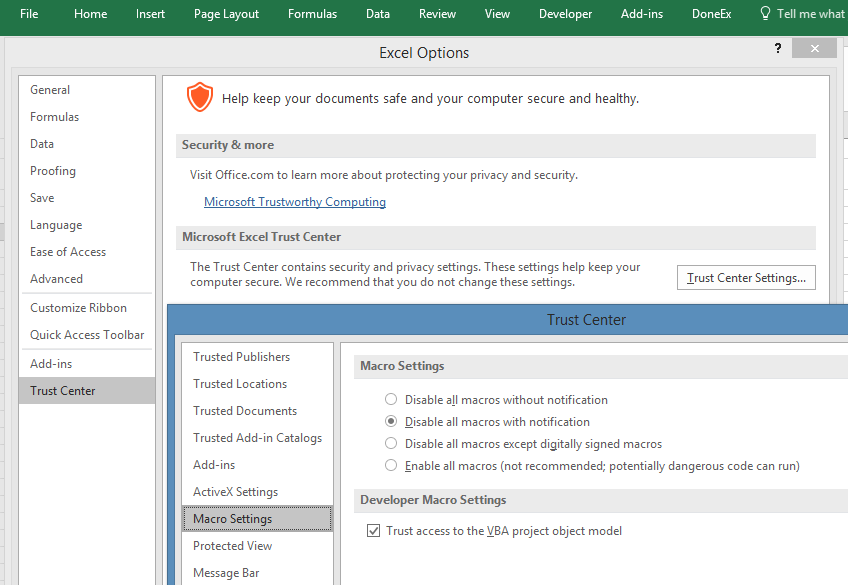
You need to perform this step only once, before the first compilation.
How to convert a Excel Workbook to an EXE File
- Firstly, start by copying a workbook you would like to compile into the “My Documents” folder or its sub-folder.
- Then, open the workbook by double clicking on it with the left mouse button in the File Explorer.
- Your installed Excel version will open and display your workbook. To illustrate our explanation we will be using our Sample.xls file.
- Select DoneEx >> XCell Compiler >> Compile, from the Excel main menu bar.
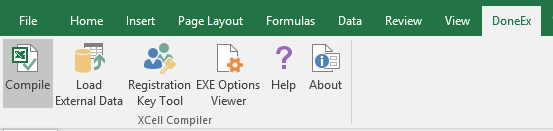
- The following dialog form will appear. This is the DoneEx XCell Compiler – Excel to Exe conversion options window.
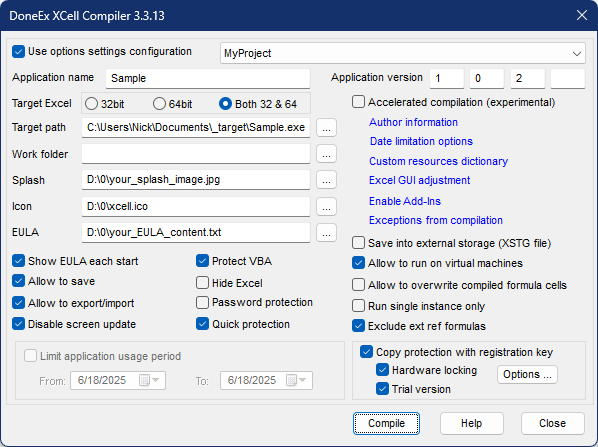
- The ‘Application Name’ field is filled by the workbook name by default.
- Put the version number 1 0 2 as shown in the above image
- Enter the copyright text in the copyright box.
- The target path shows the location and file name of your compiled application. By default, the location of the compiled EXE file will be in the same folder as where your original workbook is located. By default, the name of your compiled EXE will be the same as your original workbook name but with a ‘.EXE’ file extension.
- Click the compile button in the XCell Compiler screen. Once the compilation is completed, the following message will be displayed:
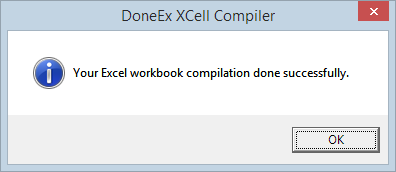
- Click OK on the compilation message screen.
- Click the close button on the XCell Compiler screen.
- Close Excel.
- Once the Excel worksheet is compiled, a file with the EXE format will be saved at the specified target path.
Browse “My Documents” to use the compiled file, and then just double click the compiled file icon (sample.exe file) with the left mouse button. - The file will be opened in a Microsoft Excel environment.
- You have now secured the file! You can finally send the compiled file to your client with peace of mind.

Benefits of Converting a Workbook into an EXE File
Excel to exe conversion gives several explicit and implicit benefits.
Converting an Excel workbook to an EXE file provides several explicit and implicit benefits:
- Protection of formulas and VBA code: No one can view or extract your formulas or VBA code from a protected EXE file. All formulas are compiled into binary code, making it impossible to reverse-engineer them back into text.
- Copy protection and licensing control: By using the Copy Protection and Hardware Locking options during the conversion, you can prevent illegal copying and unauthorized use of your intellectual property. You have full control over the distribution of your protected workbook and can license it to your customers. You can also set a time-limited usage period for the EXE file.
- Credential verification: The protected EXE file verifies all customer credentials at startup. If the credentials do not match the required parameters, the workbook will not open.
- No Excel splash screen: The EXE file suppresses Excel’s splash screen during launch.
- No MS Excel security alerts: The protected EXE file prevents Microsoft Excel security alerts from appearing.
- Custom End User License Agreement (EULA): You can include your own EULA, which will be displayed at startup. The workbook will only open after the user accepts the EULA.
- Compatibility with both 32-bit and 64-bit Excel: The EXE file can run with both 32-bit and 64-bit versions of Excel, if you select the Both 32 and 64 target Excel option during compilation.
See Also:
How to create installer for Excel workbook
Miscellaneous Frequently Asked Questions